Jul 14, 2014

Save Power: Windows Scheduled Sleep and Scheduled Wake Up

I have got two laptops, and I plan their roles as: one in the office and the other at home, and I can remote desktop to each other using a great tool called TeamViewer. But here comes a problem that I don't want these two laptops to be always running because I think this would affect laptop's health and in another way this is not necessary during some time frame for example when I sleep this laptop should be turned off to save power.

Image result for HP Z15                                Image result for HP 8470p
HP ZBook 15  Workstation                  HP EliteBook 8470p

In short, I want to make the laptop to automatically sleep and automatically wake up at my configured time.

Part I: Scheduled Sleep
Solution: Windows Scheduled Task

1. Run taskschd.msc or click Scheduled Task in program files.

  • Give it a name for example 'Scheduled Sleep' here, 
  • Select Run whether user is logged on or not, so that when first time reboot it can still run
  • Check Run with highest privileges if you want


2. In Triggers tap, configured the schedule

  • Here I make it run daily


3. The action Tap, configure the command

  • Rundll32.exe Powrprof.dll, SetSuspendState Sleep


4. In conditions tab, configure it as run only is plugged with AC power

5. Last but not least, when you run it, it will popup a dialog and please type your NT password and save.


Part II: Scheduled Wake up
Scheduled wake up is very challenge. I have searched a lot of posts and tried to configure through scheduled task but it didn't work. Luckily I found a tool which is simpler but very useful.

This is a freeware, WakeUpOnStandBy which you can download from here http://www.dennisbabkin.com/wosb/

The configuration is very straightforward.

  • Configure the wake up time
  • Check Turn screen on
  • Select every day so that it will run every day
  • Click Start to make all the configuration take effect


The last step is that to make sure the wakeuponstandby application is running when you login windows by drag the shortcut of this application under Startup.


All set. Test Passed. Happy World!


If you find this blog is useful, please kindly click the ads on this page to help. Thank you very much.

Jun 27, 2014

Finally, My Microsoft OneNote Online!

OneNote, without doubt is the best notebook in industry, and I have been using it since 2009. But there comes a problem that how I can sync my notes among different devices.

Microsoft gives out the solution to use OneDrive, how ever I just could not make it work.

In my OneNote, there is no place that I can switch account or use online folder etc.

When I tried to open a note file stored in OneDrive with my desktop OneNote.exe (by default it will be opened by online OneNote), I got an error like this:

The solution is to edit Registry settings.
HKEY_CURRENT_USER\Software\Microsoft\Office\15.0\Common\signin:signinoptions

Change this value from 3 to 1


Please review the link for details:
http://answers.microsoft.com/en-us/office/forum/office_2013_release-office_install/office-2013-office-account-signin-feature-disabled/d086ea41-431a-4798-b46a-2ebcd25b7cb7

The prerequisite step is to upload your OneNote notes files to OneDrive, and then login using our OneDrive account and it automatically pops up and you can choose a note you want.

Good to go!

If you find this blog is useful, please kindly click the ads on this page to help. Thank you very much.

Jun 23, 2014

Strange maven-compiler-plugin Error when importing project

This problem cost me about 3 hours and finally I found a solution.

Let me describe the background. I have got a new laptop and want to set up a development environment: for eclipse I copied from my old machine and when I wanted to import a maven project, a strange problem happened:

Now it is fixed so the screenshot below looks good, but at that time, it was saying: maven-compiler-plugin 2.5.1 missing ...

I continue with the errors, but the project crashed no matter how I add dependencies.


I have tried to re-install eclipse, install maven, use different java version, use other versions of maven-compiler-plugin... None of them worked.

Here is the ultimate solution:
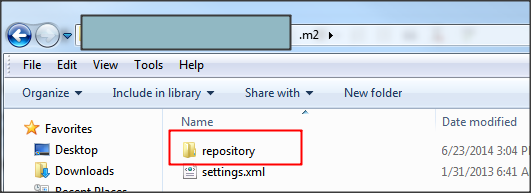
Delete the local repository settings by deleting the repository folder in .m2 (C:\Users\yourid\.m2\repository)


After restart eclipse and re-import the maven project, it is all solved.

Happy using new computer!

If you find this blog is useful, please kindly click the ads on this page to help. Thank you very much.

Use Apple Keyboard in Windows

I have bought an apple MB110LL/B keyboard (someone called it apple G5) and I want to use it in windows 7. I found that my function keys do not work very well.


To well use it in windows, we have a software called SharpKeys

The step is: click Add, and then click 'Type Key' button, and on the right, select the actual key you want it maps to.
Logout and login again, it will take effect.

Useful Tips:

Clear on the Numeric Keypad is the 'num lock key' in windows.

If you find this blog is useful, please kindly click the ads on this page to help. Thank you very much.

Apr 1, 2014

[Solved]Chrome cannot access Internet

All of a sudden I found my Chrome cannot access internet. In the beginning I thought it's a network problem, especially when I was in office using company proxy.

But I found that Internet Explorer is running, and even Chrome Canary is working normally.
https://www.google.com/intl/en/chrome/browser/canary.html

Chrome

I looked at all posts by didn't find any working solution.

Luckily I found out the root cause:
when I go to chrome-->Settings-->Advanced Settings
I found that change proxy settings is grayed out and it says "Your network proxy settings are being managed by an extension"


This makes me realize that there must be one extension that hijacked my network traffic. Then it is simple:
I found it's a AD blocker I am using, and I simply need to disable it.


Chrome is working well again.
For people might have similar problem, please check the extension you are using if Chrome cannot access internet, and you don't need to do things like uninstall and reinstall Chrome etc.

If you find this blog is useful, please kindly click the ads on this page to help. Thank you very much.